🎧 Samsung Galaxy Buds Repair Guide
Last Updated: January 2026 • Model identification, charging case LEDs & post-repair pairing
Before you book a Galaxy Buds battery, earbud or charging-case repair — or pick the buds up afterward — two things matter: knowing exactly which model you own, and knowing how to re-pair replaced earbuds so they work with your existing case. This guide covers both, along with what the charging case LED colours mean.
1. Identify your Galaxy Buds model
Samsung has released five wireless-earbud models under the Galaxy Buds name. Each has its own internal part code (an “R-code”), which is the fastest way to confirm you are looking at spare-part pricing for the right model — the names alone (especially “Buds” vs “Buds+” vs “Buds Live”) are easy to mix up.
| Model | Part code | Distinguishing shape |
|---|---|---|
| Galaxy Buds | R170 | Rounded, bean-shaped, no stem |
| Galaxy Buds+ | R175 | Same rounded shape as the original Buds, larger case |
| Galaxy Buds Live | R180 | Kidney / bean-shaped "open-fit" design, no silicone ear tip |
| Galaxy Buds Pro | R190 | Rounded with a flatter face, silicone ear tip |
| Galaxy Buds2 | R177 | Compact rounded shape, silicone ear tip, smallest case |
If you do not have the part code handy, check the underside of the charging case or the original packaging — Samsung prints the model code there.
What is different inside each model
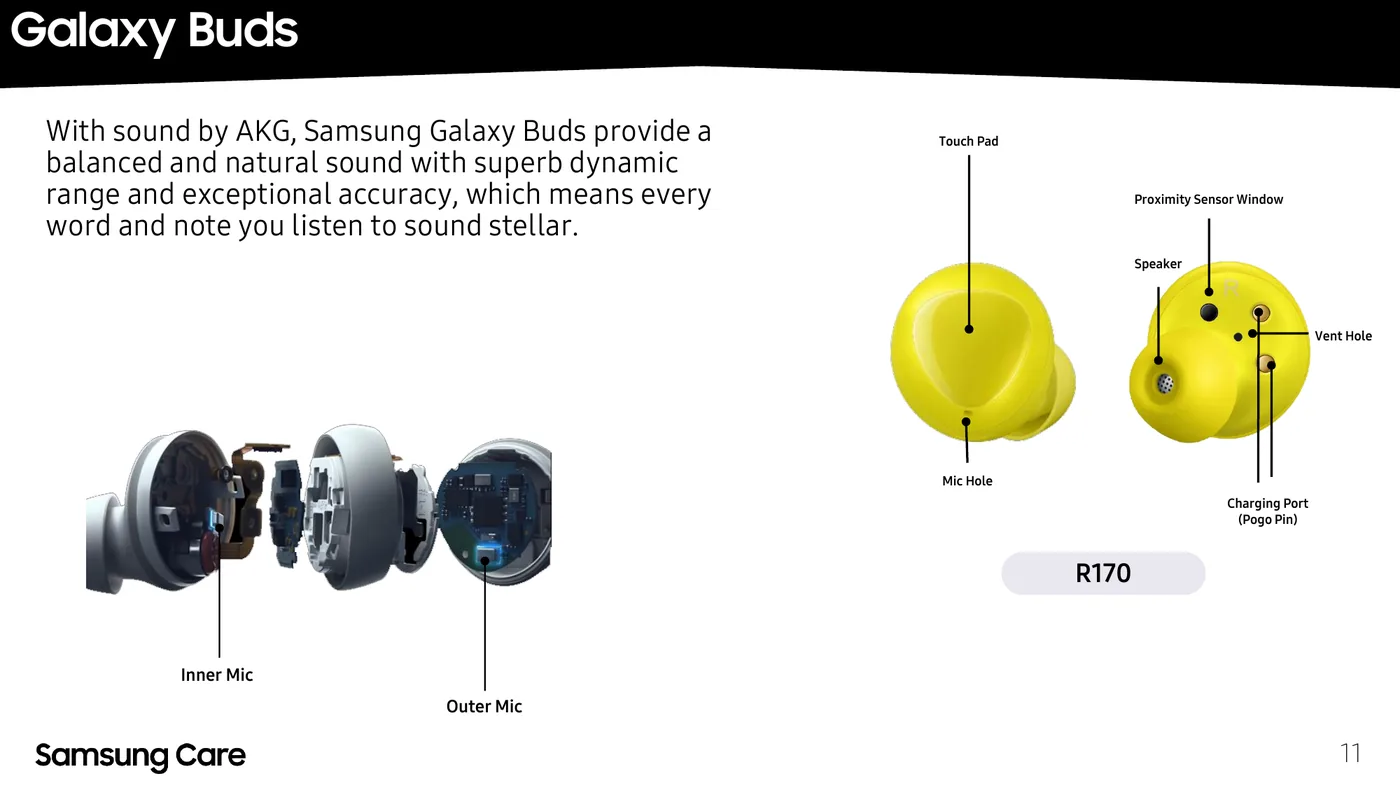
Galaxy Buds (R170)
A single inner mic plus one outer mic and a 2-way dynamic speaker (tweeter + woofer). Sound tuned by AKG.
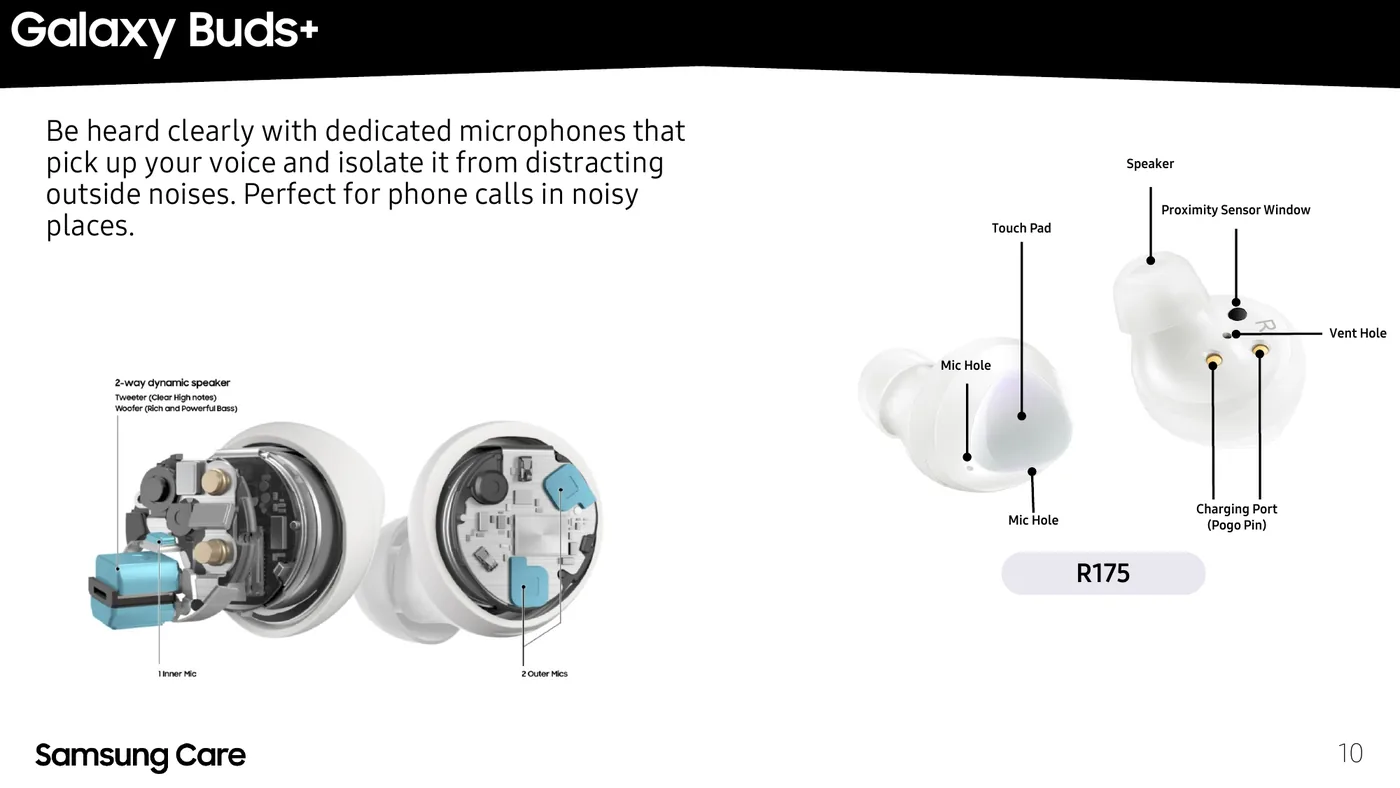
Galaxy Buds+ (R175)
One inner mic and two outer mics for call noise isolation, with a 2-way dynamic speaker (tweeter + woofer).
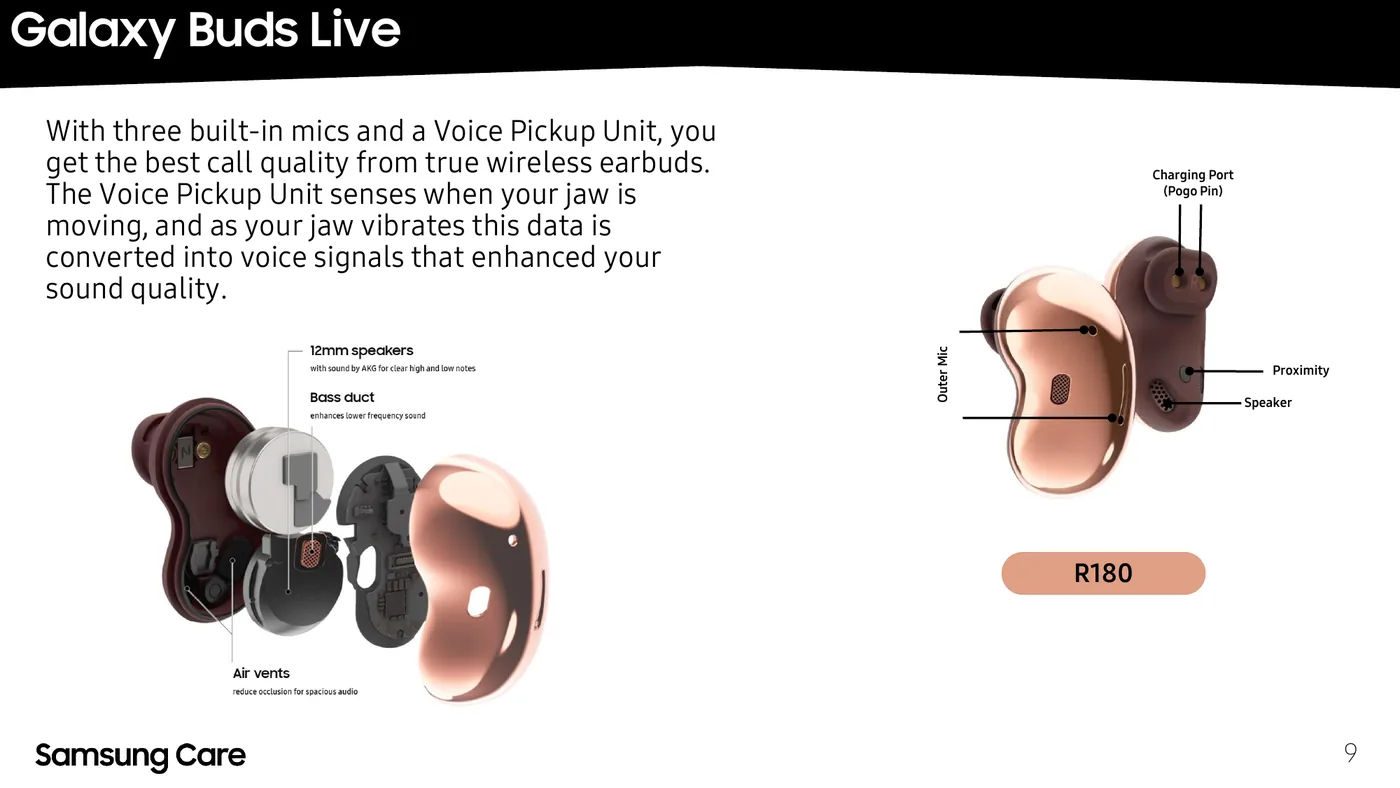
Galaxy Buds Live (R180)
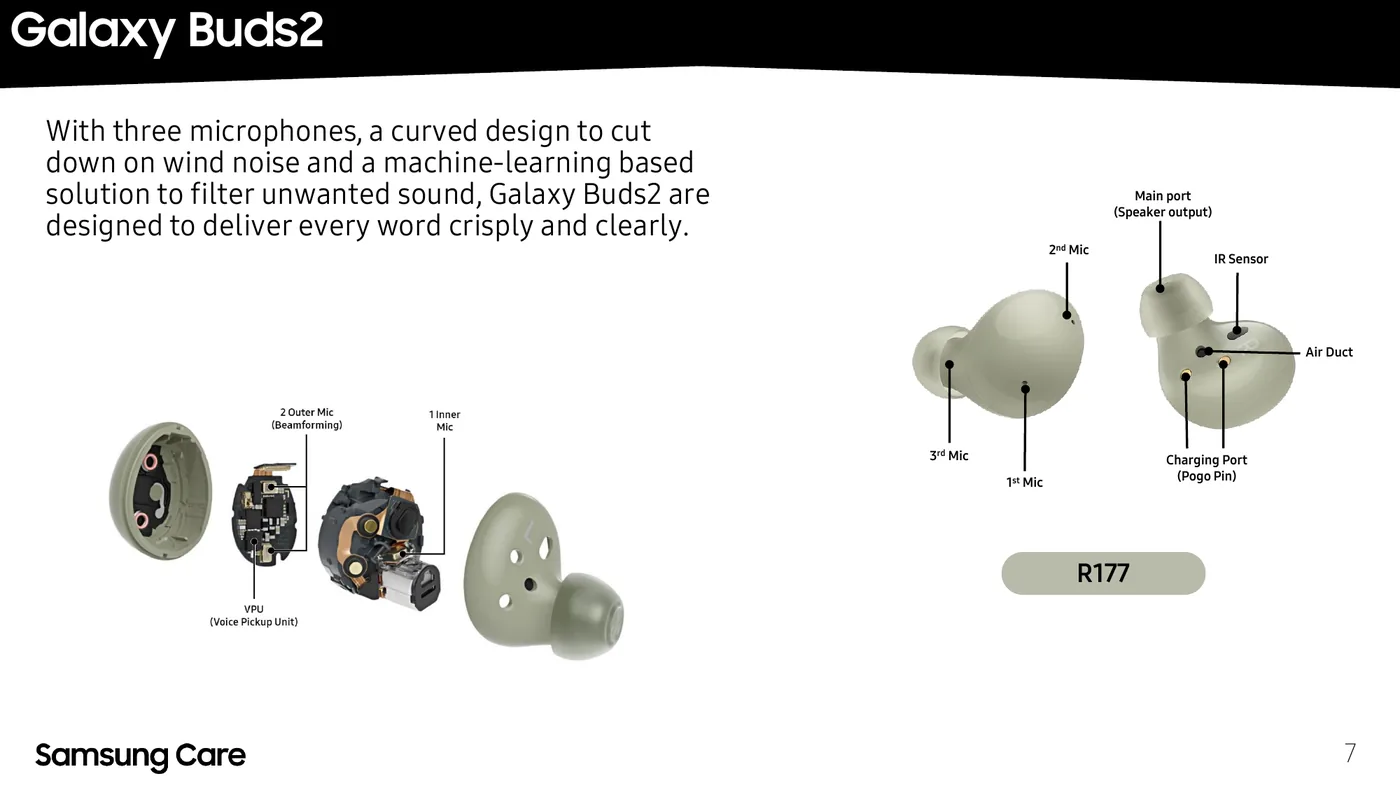
Adds a dedicated Voice Pickup Unit (VPU) that senses jaw vibration while you speak and blends it with the mics for clearer calls, alongside 12 mm AKG speakers and a bass duct.
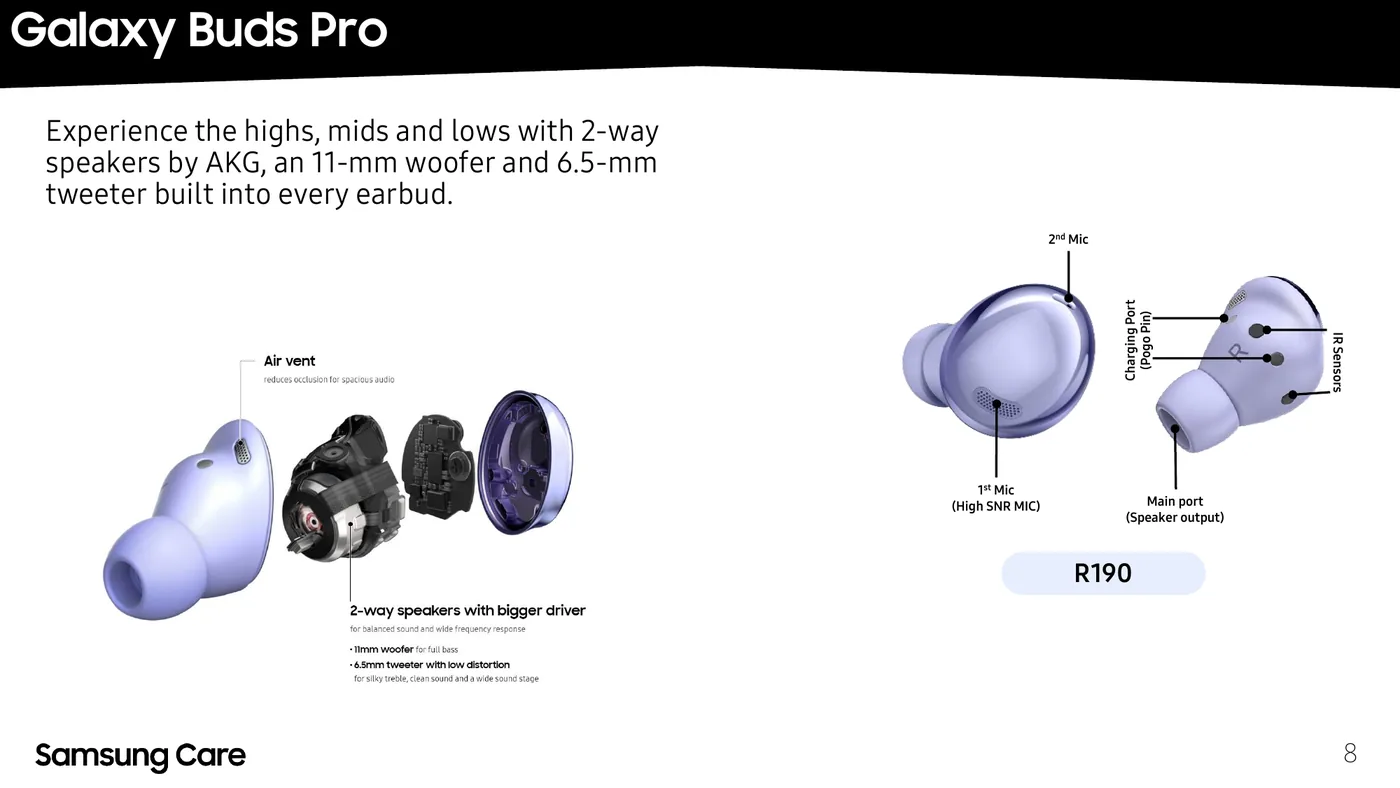
Galaxy Buds Pro (R190)
The only model with a true 2-way AKG driver setup — an 11 mm woofer and 6.5 mm tweeter in each earbud — plus a high-SNR mic and an air vent to reduce occlusion.
Galaxy Buds2 (R177)
Three microphones (two outer beamforming mics plus one inner mic) with a machine-learning noise filter aimed specifically at cutting wind noise on calls.
2. Charging case LED status
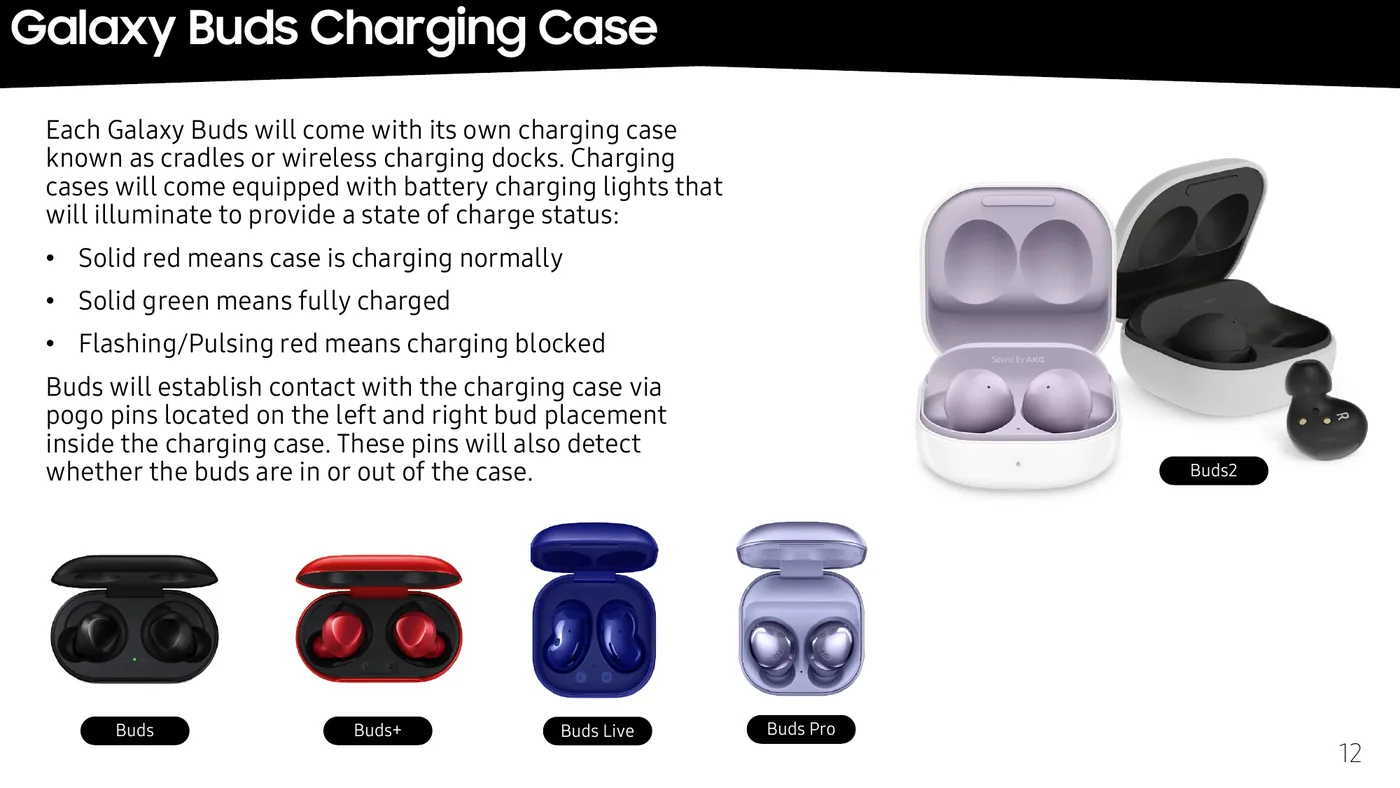
Every Galaxy Buds charging case (Samsung also calls it a cradle or wireless charging dock) has an LED that reports charging state:
| LED behaviour | Meaning |
|---|---|
| Solid red | Case is charging normally |
| Solid green | Fully charged |
| Flashing / pulsing red | Charging is blocked — check the pogo pins and contacts for debris or damage |
The earbuds make contact with the case through pogo pins on the underside of each earbud slot. Those same pins also tell the case whether each earbud is seated in or out — which is exactly what the case uses during the re-pairing (coupling) process below.
3. Pairing Galaxy Buds with the Galaxy Wearable app
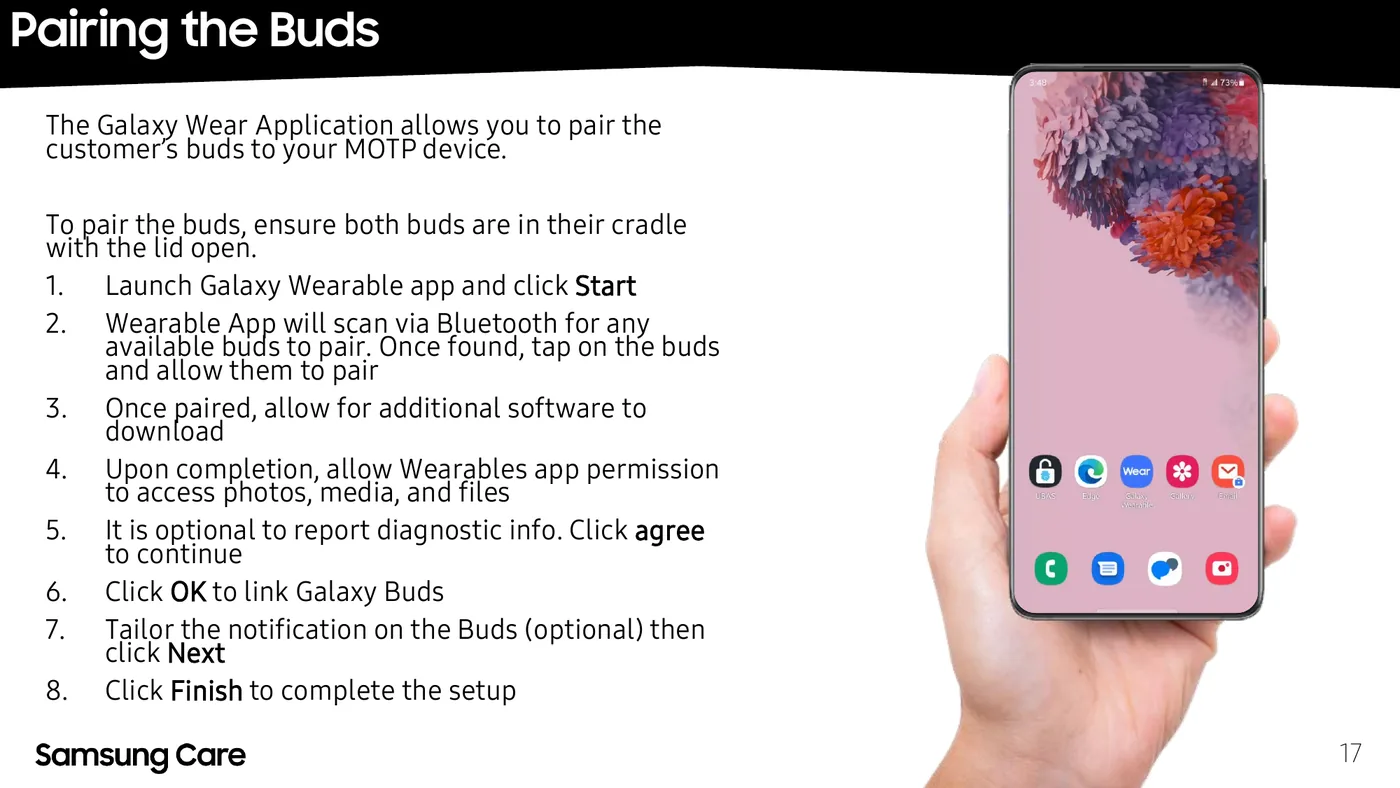
Galaxy Buds do not pair like ordinary Bluetooth headphones — setup goes through Samsung’s Galaxy Wearable app, available on the Google Play Store and Samsung Galaxy Store.
- Put both earbuds in the case and open the lid.
- Open Galaxy Wearable and tap Start.
- The app scans over Bluetooth for nearby buds — tap yours when it appears and confirm pairing.
- Allow any software update the app offers to download.
- Grant the app permission to access photos, media and files when prompted.
- Diagnostic reporting is optional — accept or decline, then continue.
- Tap OK to link the buds.
- Optionally adjust notification settings on the buds, then tap Next.
- Tap Finish to complete setup.
Keeping the firmware current
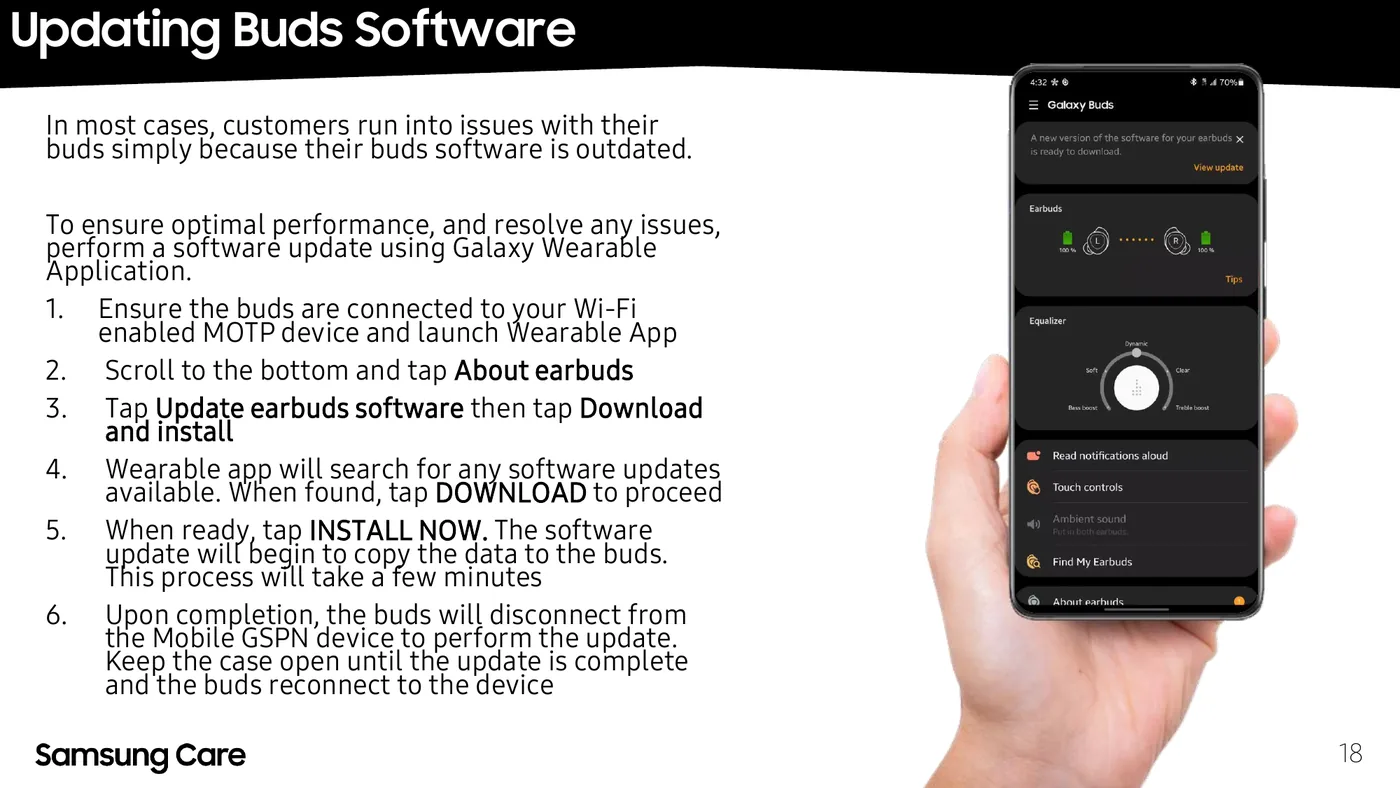
Most reported Buds issues — dropouts, touch controls misbehaving, connection problems — trace back to outdated firmware rather than a hardware fault. Before assuming a repair is needed, update the buds:
- Connect the buds to a Wi-Fi-enabled phone and open Galaxy Wearable.
- Scroll to the bottom and tap About earbuds.
- Tap Update earbuds software, then Download and install.
- When the update is found, tap Download, then Install now.
- The buds disconnect from the phone while the update copies to them — leave the case open until they finish and reconnect. This takes a few minutes.
4. Re-pairing (coupling) earbuds after a repair
If an earbud has been replaced — whether for a battery, a cracked shell or any other fault — it will not work with the existing case and its remaining earbud until it has been coupled. This is a separate step from the normal Bluetooth pairing above; it is how the case and earbuds establish their own paired relationship with each other.
Galaxy Buds3 / Buds3 Pro? Those use the charging cradle button instead of the touch panels, and add a reset step — see the Buds3 Coupling & Reset guide.
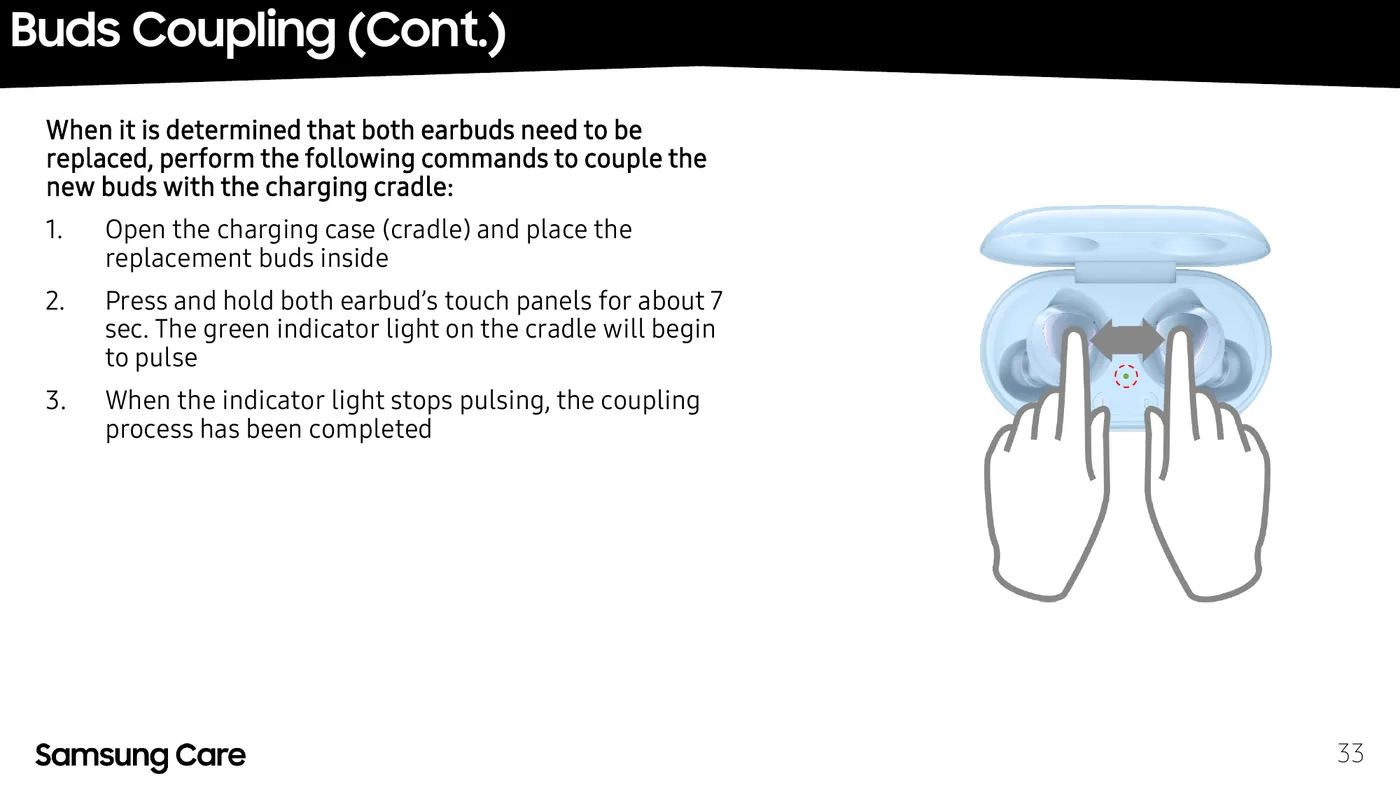
Both earbuds replaced
- Open the charging case and place both new earbuds inside.
- Press and hold both earbuds’ touch panels for about 7 seconds. The case’s green indicator light begins to pulse.
- When the indicator light stops pulsing, coupling is complete.
Only one earbud replaced
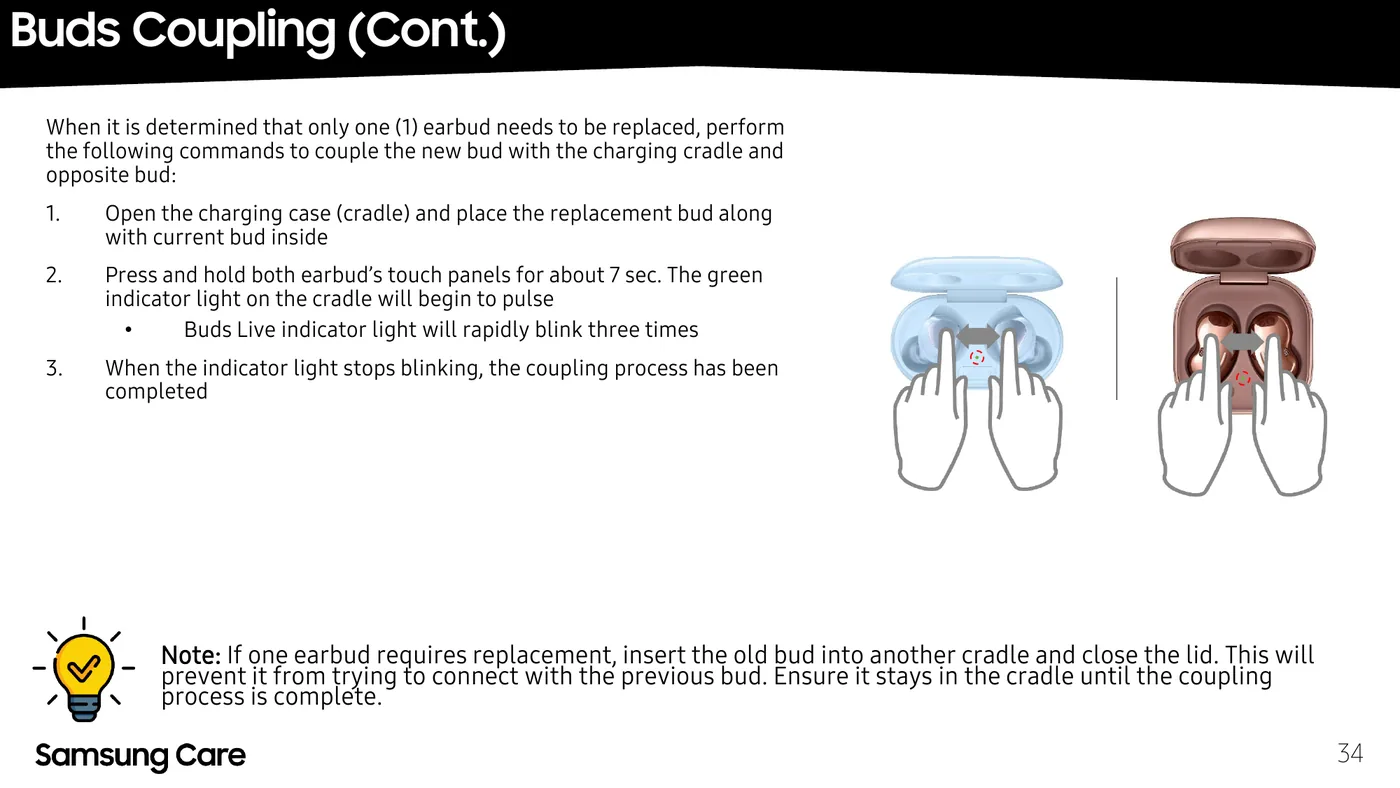
- Open the case and place the replacement earbud in alongside the earbud you are keeping.
- Press and hold both earbuds’ touch panels for about 7 seconds. The indicator light begins to pulse (on Galaxy Buds Live it instead blinks rapidly three times).
- When the light stops, coupling is complete.
💡 Note: keeping your old earbud as a spare
If you are keeping the old earbud, put it in a different case and close the lid before starting the coupling process above. Otherwise it may try to reconnect with the new earbud mid-process. Keep it in that separate case until coupling finishes.
Galaxy Buds Repair FAQ
How do I tell which Galaxy Buds model I have?
The fastest way is the internal part code (R-code): R170 = Galaxy Buds, R175 = Galaxy Buds+, R180 = Galaxy Buds Live, R190 = Galaxy Buds Pro, R177 = Galaxy Buds2. Samsung prints this code on the underside of the charging case and on the original packaging. Model names alone are easy to mix up, so always confirm by the code before ordering spare parts.
Do I need to re-pair with my phone after a repair?
Not usually. Coupling re-establishes the earbud-to-case relationship, not the case-to-phone Bluetooth pairing. If the phone still does not recognise the buds afterward, remove them from your Bluetooth settings and pair again through the Galaxy Wearable app.
My case LED will not stop flashing red during coupling. What does that mean?
That is the "charging blocked" signal, not a coupling signal. Check that both earbuds are seated fully in their slots and that the pogo pin contacts — on both the earbuds and the case — are clean and free of debris.
Can I mix parts between models, for example a Buds2 earbud in a Buds Live case?
No. Each model’s earbuds, case and internal components (drivers, VPU, batteries) are specific to that part code. Always match replacement parts to your model’s R-code.
My Buds keep dropping or the touch controls misbehave. Is that a hardware fault?
Most reported Buds issues — dropouts, touch problems, connection glitches — trace back to outdated firmware rather than a hardware fault. Update the earbuds through Galaxy Wearable (About earbuds → Update earbuds software) before assuming a repair is needed.
Diagrams and procedures adapted from the Samsung Care “Galaxy Buds Training Repair Guide” (PDF). This page is an independent reference; for warranty repairs and genuine parts, visit an authorised Samsung service centre.