📺 Samsung Smart Remote — Button Guide
Last Updated: January 2026 • Button reference, battery replacement & pairing (Samsung doc BN68-22130A)
The Samsung Smart Remote is the slim, minimal-button remote that ships with most Samsung Smart TVs. This page lists what every button does, how to replace the batteries, and how to re-pair the remote with your TV after a battery change or repair.
1. Buttons on the Samsung Smart Remote
The numbered callouts 1–4 in the diagram match the markers in the table below: 1 MIC / LED, 2 Directional button, 3 Select, 4 Launch app buttons.
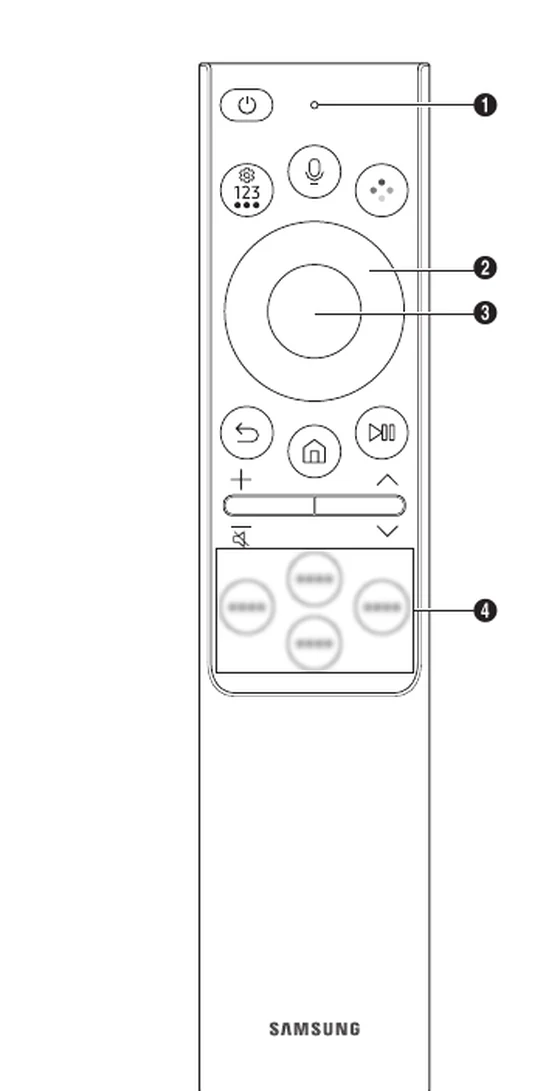
| Button | Description |
|---|---|
| (Power) | Press to turn the TV on or off. |
| 1 MIC / LED | Used as MIC when using voice recognition with the remote control.• Do not impact the MIC hole or use a sharp object to poke into the hole. |
| (Voice Assistant) | Runs Voice Assistant. Press and hold the button, say a command, and then release the button to run Voice Assistant.• The supported Voice Assistant's languages and features may differ by geographical area. |
| (Settings / Number / Option button) | You can access the Settings menu / virtual numeric pad / Option pad / SmartThings directly.• Accessing the SmartThings app using this button may not be supported, depending on the model.• Use this button to access additional options that are specific to the feature in use.• Press to bring up the virtual numeric pad on the screen. Use the numeric keypad to enter numeric values. Select numbers and then select Done or Enter Number to enter a numeric value. Use to change the channel, enter a PIN, ZIP code and so on. |
| (Colour button) | When pressed, coloured buttons appear on the screen. Use this button to access additional options that are specific to the feature in use. |
| 2 Directional button (up, down, left, right) | Moves the focus and changes the values seen on the TV's menu. |
| 3 Select | Selects or runs a focused item. When pressed while you are watching a broadcast programme, detailed programme information appears. |
| (Return) | Press to return to the previous menu. When pressed for 1 second or more, the running function is terminated. When pressed while you are watching a programme, the previous channel appears. |
| (Smart Hub) | Press to switch to the Home Screen. |
| (Play/pause) | When pressed, the playback controls appear. Using these controls, you can control the media content that is playing.To use Game Bar, press and hold the button in Game Mode.• Game Bar may not be supported depending on the model or geographical area. |
| + / − (Volume) | Move the button up or down to adjust the volume. To mute the sound, press the button. When pressed for 2 seconds or more, the Accessibility Shortcuts appears.• The mute icon may not be present, depending on the model. |
| ∧ / ∨ (Channel) | Move the button up or down to change the channel. To see the Guide or Channel List screen, press the button. (The Guide or Channel List screen appears depending on the geographical area.)• When pressed for 1 second or more, the Channel List screen appears. |
| 4 Launch app button | Press each button to run its function. (These buttons may vary depending on the geographical area.)• Available apps may differ depending on the geographical area or contents provider. |
| (Return) + (Play/pause) — Pairing | If the Samsung Smart Remote does not pair to the TV automatically, point it at the front of the TV, and then press and hold the Return and Play/pause buttons simultaneously for 3 seconds or more. |
- Use the Samsung Smart Remote less than 6 m from the TV. The usable distance may vary with the wireless environmental conditions.
- The images, buttons, and functions of the Samsung Smart Remote may differ with the model or geographical area.
- The Universal Remote function operates normally only when you use the Samsung Smart Remote that comes with the TV.
2. Replacing the batteries
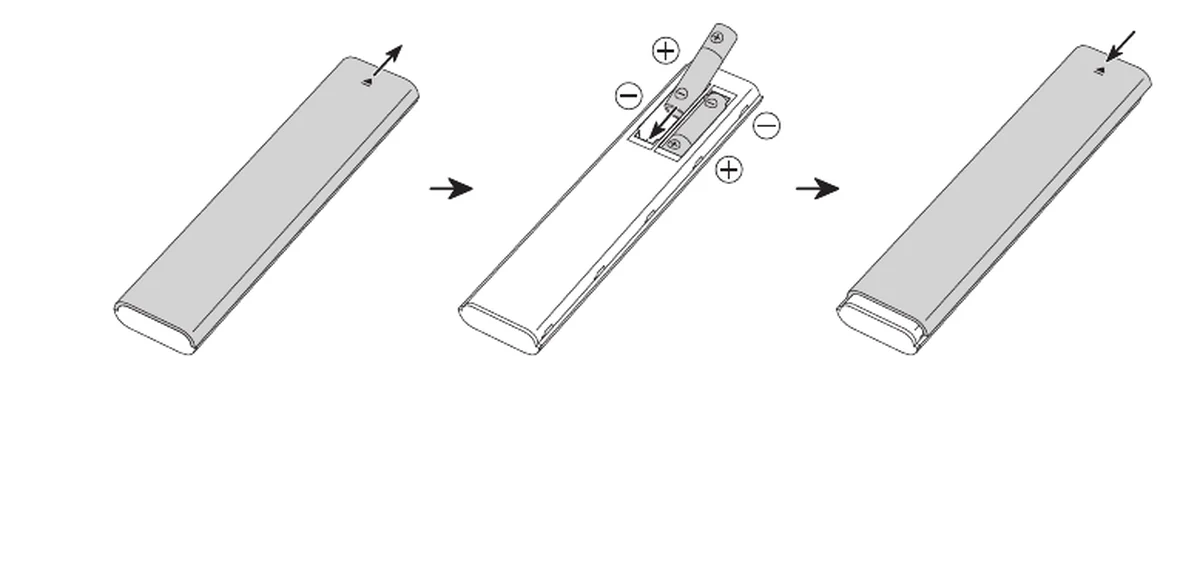
- Slide the rear cover off in the direction of the arrow.
- Remove the old batteries.
- Insert the new batteries so they match the + and − symbols moulded into the compartment. The required battery size is printed inside.
- Slide the rear cover back on until it clicks into place.
3. Pairing the remote with your TV
A new Samsung Smart Remote usually pairs on its own the first time you fit batteries and point it at the TV. If it does not pair automatically:
- Point the remote at the front of the TV (within about 6 m).
- Press and hold the Return (↩) and Play/pause (▶❙❙) buttons simultaneously for 3 seconds or more.
- Release the buttons once the TV confirms the remote is paired.
The Universal Remote function (controlling a set-top box, soundbar, etc.) works correctly only with the Samsung Smart Remote that came with the TV.
Samsung Smart Remote FAQ
How do I pair a Samsung Smart Remote to the TV?
Most Samsung Smart Remotes pair automatically the first time you put batteries in and point the remote at the TV. If it does not, point the remote at the front of the TV and press and hold the Return (↩) and Play/pause (▶❙❙) buttons at the same time for 3 seconds or more.
How do I replace the batteries in the Samsung Smart Remote?
Slide the rear cover off in the direction of the arrow, take out the old batteries, insert the new ones so they match the + and − symbols moulded into the compartment, then slide the cover back on until it clicks. The battery size is printed inside the compartment.
What is the small hole near the top of the remote?
That is the microphone (MIC) used for voice recognition, next to an LED indicator. Do not poke anything into it or strike it — a blocked or damaged MIC stops voice commands from working.
The remote stopped working after a repair or battery change. What should I check?
Check the batteries are fresh and the right way round, use the remote within about 6 m of the TV with a clear line of sight to the front panel, and re-pair it by holding Return + Play/pause for 3+ seconds. The Universal Remote features only work with the original remote that came with the TV.
My remote looks different from the diagram — is this the wrong guide?
Not necessarily. Samsung ships several versions of the Smart Remote and the button layout, icons and functions vary by TV model and region. The descriptions here still apply to the buttons your remote does have.
Button descriptions and diagrams adapted from the Samsung guide “About the Buttons on the Samsung Smart Remote” (BN68-22130A-00, PDF). Button layout and functions vary by TV model and region. This page is an independent reference; for warranty repairs and genuine parts, visit an authorised Samsung service centre.